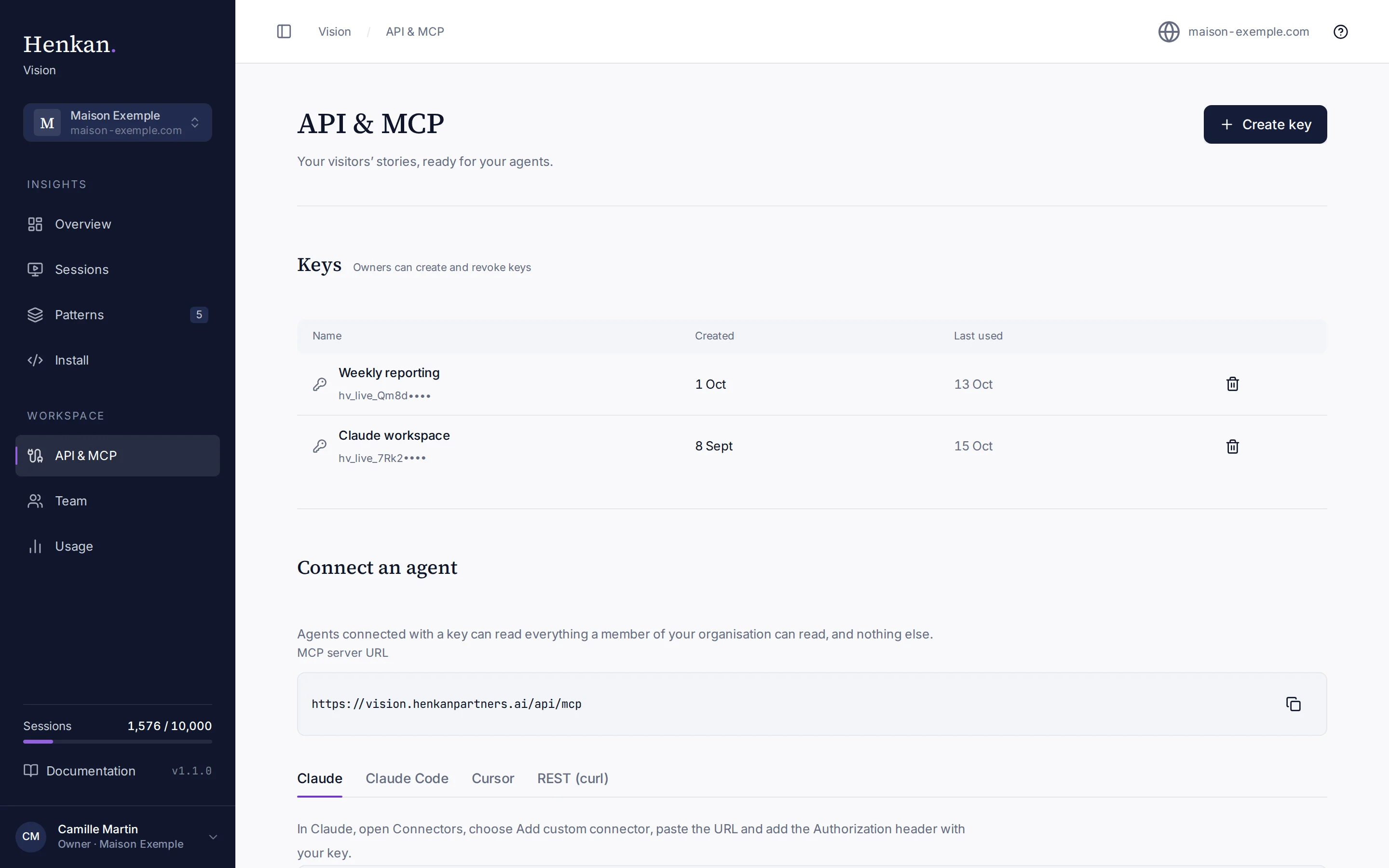
API keys connect AI agents and tools to your organisation through the MCP server or the REST API. Every key is read-only and covers all sites of the organisation.
1
Create key. Owners create keys here.
2
Key. The name you gave it and the first characters of the key.
3
Revoke key. Stops the key immediately.
4
MCP server URL. The address to give your MCP client.
5
Client tabs. Step-by-step setup for Claude, Claude Code, Cursor and REST.
Create a key#
- Open API & MCP Select API & MCP in the sidebar.
- Select Create key Name the key after where it will be used, for example "Claude workspace", then select Create key.
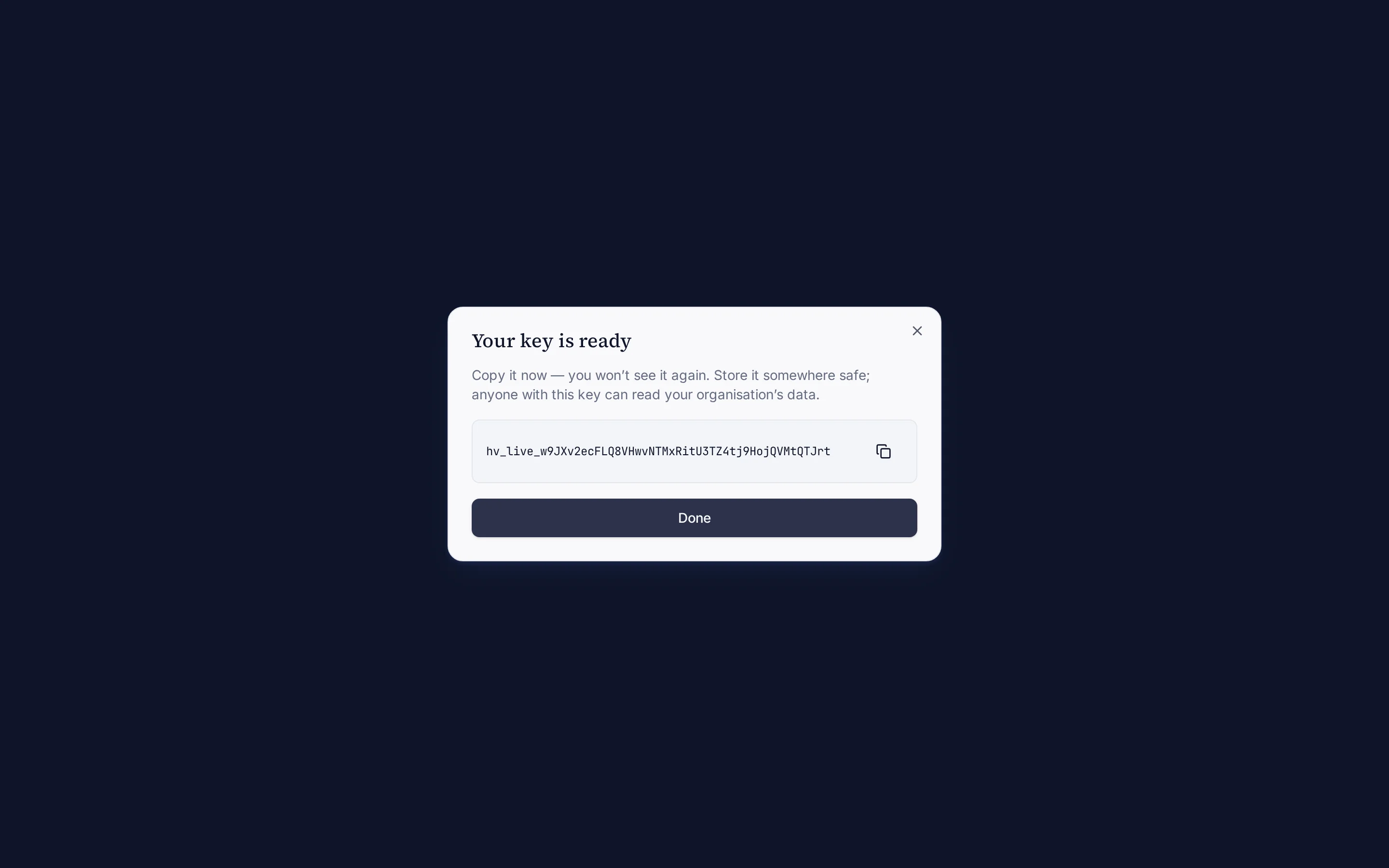
- Copy it now Vision shows the full key once. Copy it and store it in a password manager or your tool's secret settings, then select Done.
1
Your key is ready. Copy it now: it will not be shown again.
Keys list#
| Column | Meaning |
|---|---|
| Name | The name you chose and the beginning of the key (for example hv_live_7Rk2••••), to tell keys apart. |
| Created | When the key was created. |
| Last used | The last time an agent used it, or Never used. |
Revoke a key#
- Select the bin icon Select Revoke key on the key's row.
- Confirm Select Revoke key in the dialog. Any assistant using the key loses access at once.
Rules#
| Rule | Detail |
|---|---|
| Who can create and revoke | Organisation owners. Members see the list read-only. |
| Number of keys | Up to 10 active keys per organisation. |
| Access | Read-only, across all sites of the organisation. |
| Storage | Vision keeps only a SHA-256 fingerprint of each key; nobody can show it again. |
| When a teammate leaves | Keys they created stop working when they leave the organisation or lose access. |
| Rate limits | 60 requests per minute and 5,000 per day per key. |