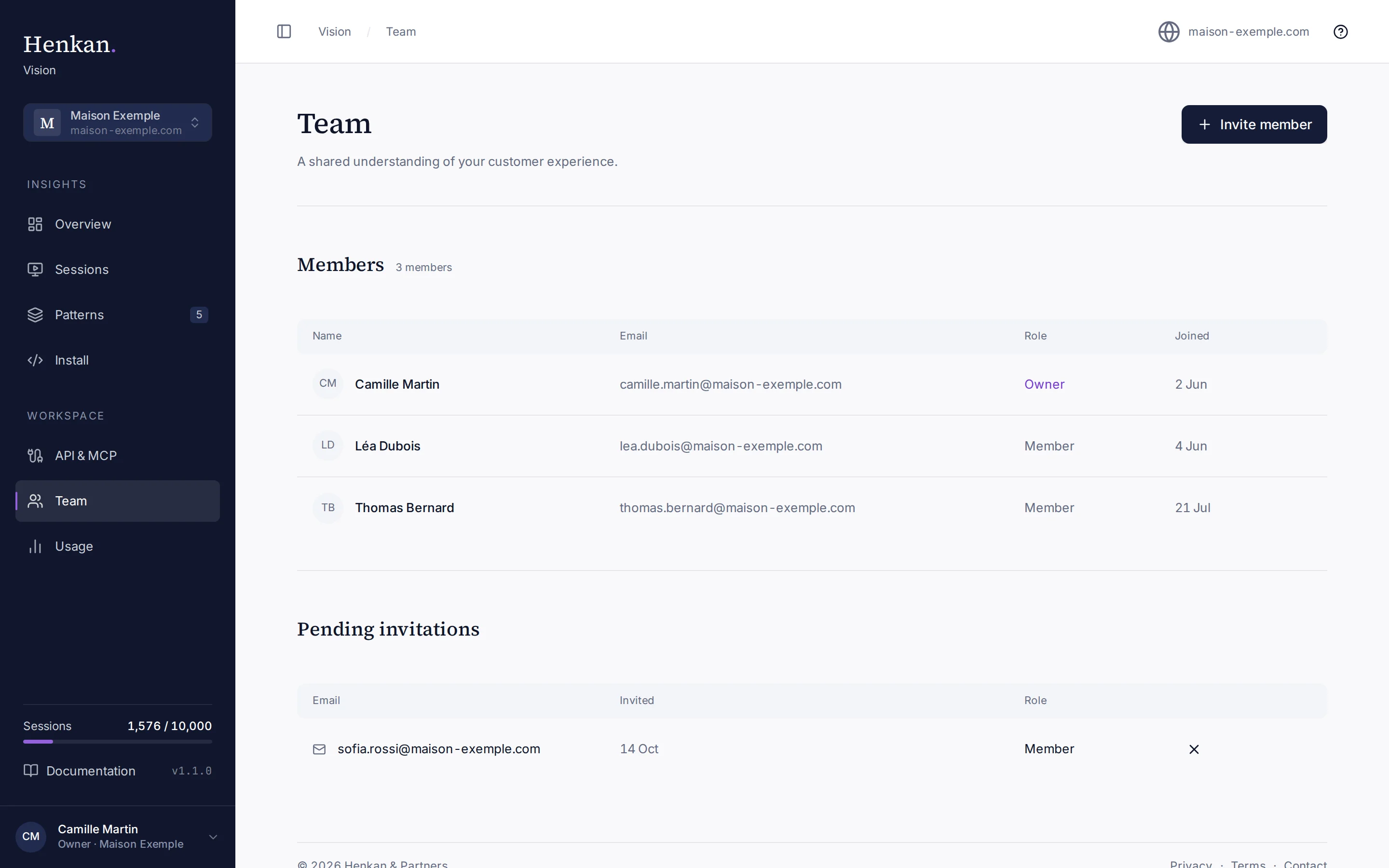
Everyone in your organisation sees the same sites, sessions and patterns. The Team page lists members and pending invitations.
1
Invite member. Creates an invitation link. Owners only.
2
Role. Owner or Member.
3
Pending invitation. Invitations that have not been accepted yet.
4
Cancel invitation. Makes the link unusable.
Roles#
| Action | Owner | Member |
|---|---|---|
| View Overview, Sessions, Patterns, Install, API & MCP and Usage | Yes | Yes |
| Watch replays, read timelines and AI summaries, share session links | Yes | Yes |
| Pin sessions and ask for an AI summary of a session | Yes | No |
| Invite members and cancel invitations | Yes | No |
| Add sites | Yes | No |
| Change a site's recording consent | Yes | No |
| Create and revoke API keys | Yes | No |
| Mark a session as AI agent or human | Yes | No |
| See the Getting started checklist | Yes | No |
Buttons a member cannot use stay visible but disabled, with a short explanation when you hover them. An organisation always keeps at least one owner.
Invite a teammate#
- Select Invite member On Team, select Invite member.
- Enter the details Enter the Email address and choose a Role, then select Send invitation.
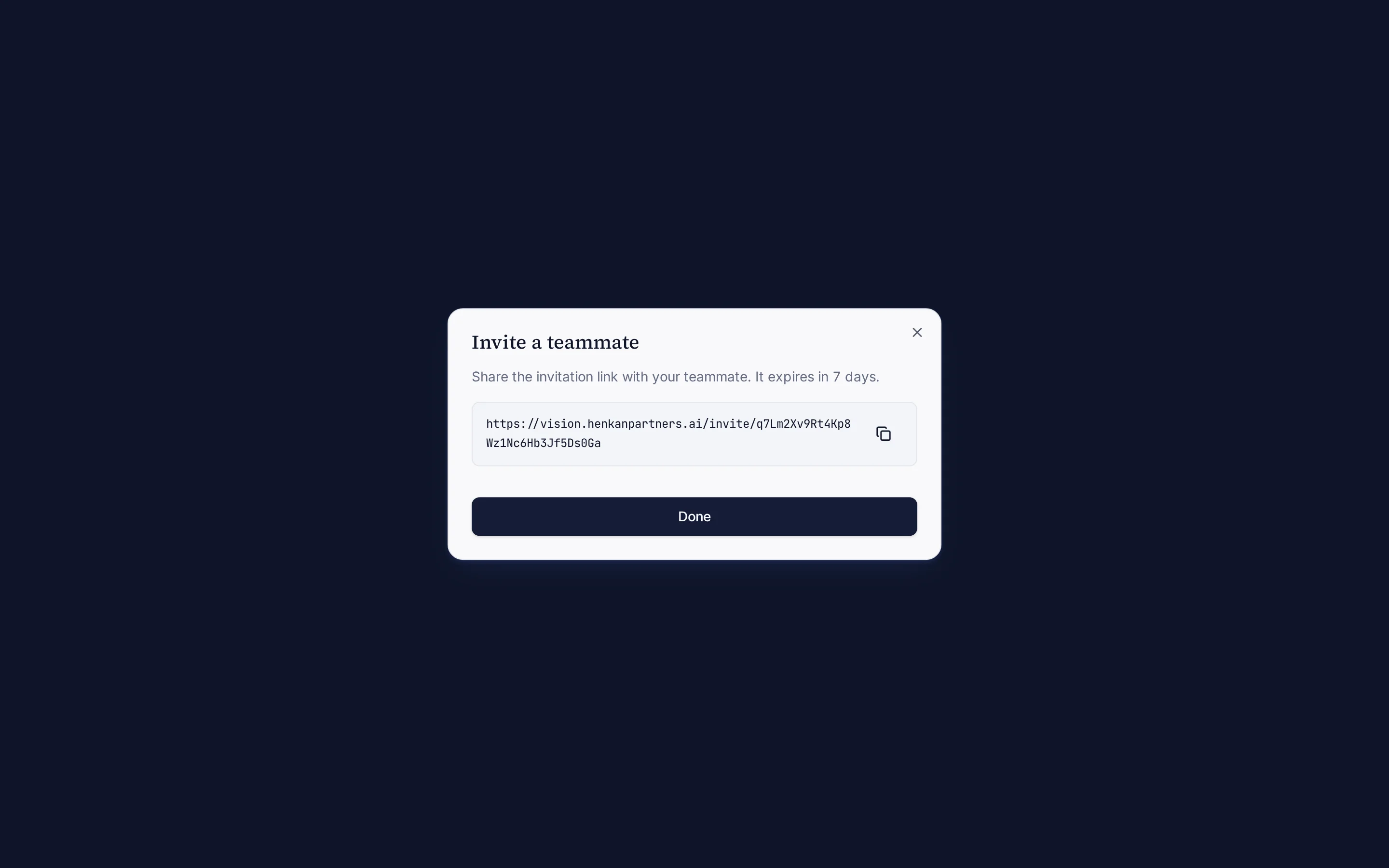
- Share the link Vision shows the Invitation link. Copy it and send it to your teammate yourself. It expires in 7 days.
1
Invitation link. Send it to your teammate. It works once and expires after 7 days.
Your teammate opens the link, signs in or creates an account with the invited email address, accepts the Terms and selects Accept invitation.
Cancel an invitation#
Select the cross (Cancel invitation) on the invitation's row in Pending invitations. The link stops working immediately.
Change roles or remove a member#
Changing a member's role or removing someone is not available on the Team page yet. Contact Henkan if you need it. API keys created by a person stop working as soon as they leave the organisation.