Sessions lists the recorded visits of the selected site, newest first. By default it shows human visitors over the last 30 days.
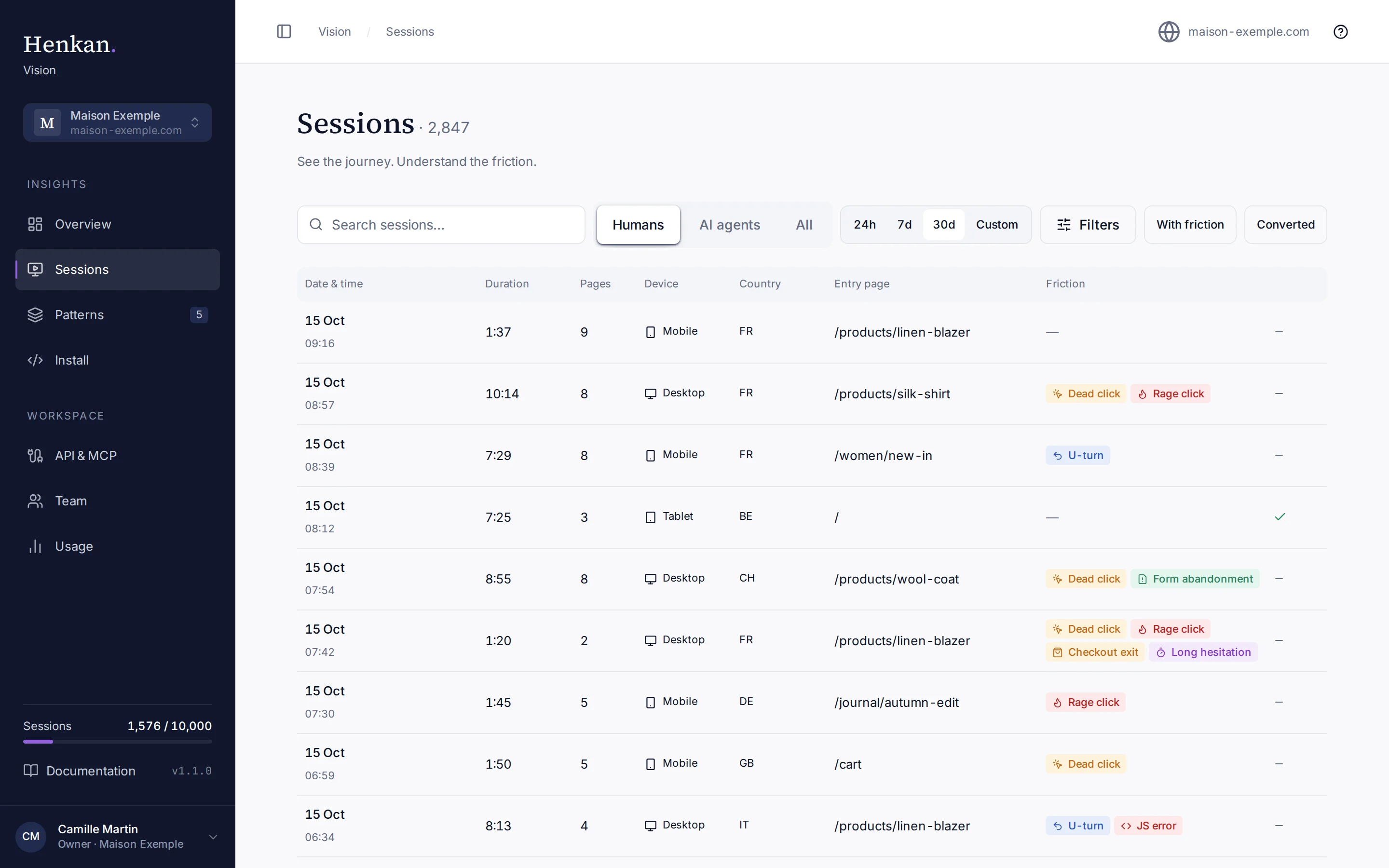
Read the list#
Each row is one session.
| Column | Meaning |
|---|---|
| Date & time | When the session started. Times in Vision are shown in UTC. |
| Duration | Time between the first and last recorded event. |
| Pages | Number of pages viewed. |
| Device | Desktop, mobile or tablet. |
| Country | Visitor country, when it can be determined reliably. Vision never stores IP addresses. |
| Entry page | The first page of the visit. AI agent sessions show the agent's name here. |
| Friction | The friction tags found in the session. |
| Last column | A tick when the session converted. |
The list shows 12 sessions per page. Below it, Showing 1–12 of … sessions gives the total, and the Previous page and Next page arrows move between pages.
Filter sessions#
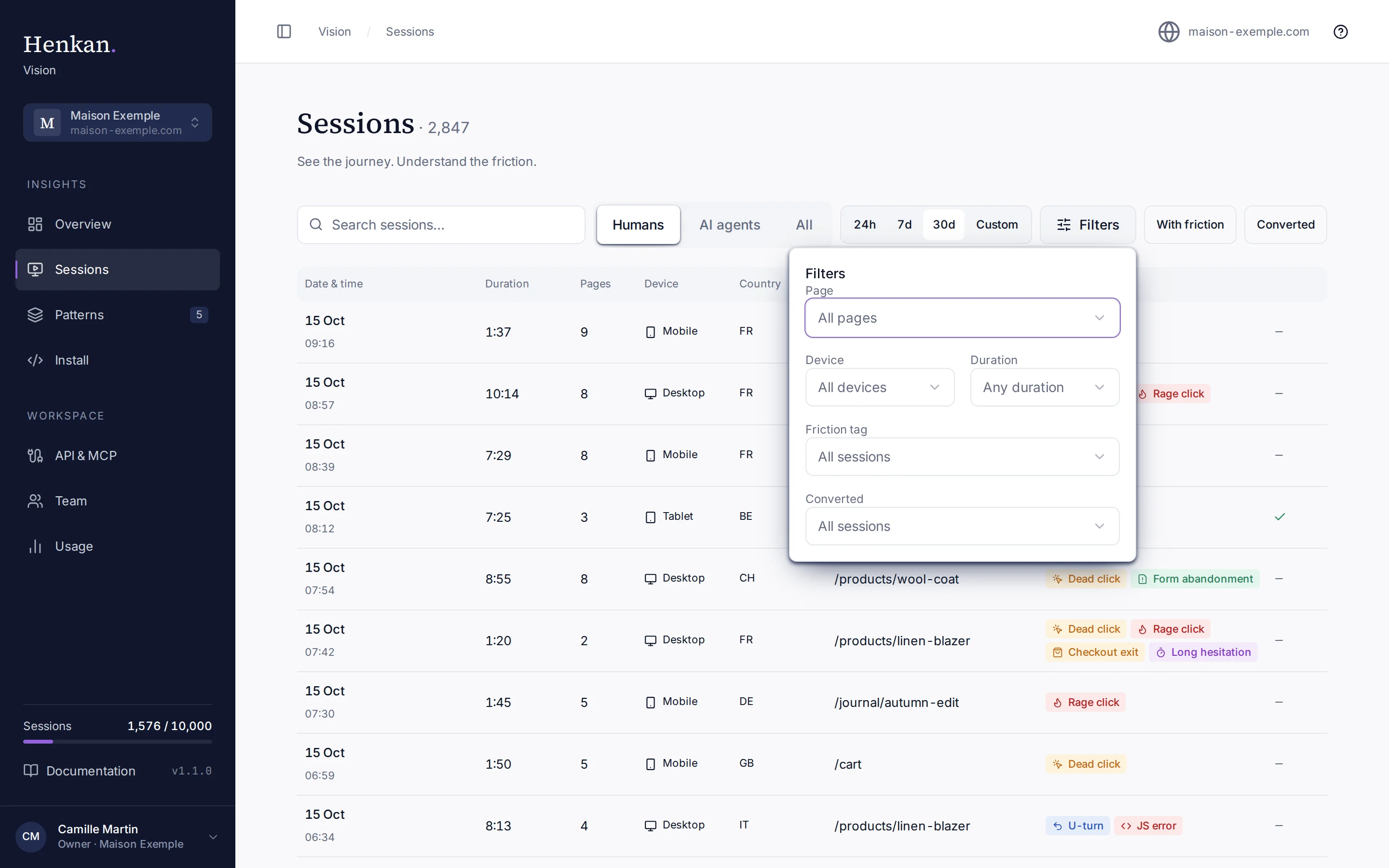
- Open the filters Select Filters. The number next to it shows how many are active.
- Pick values Choose a Page, Device, Duration, Friction tag or Converted value. The list updates at once.
- Remove a filter Each active filter appears as a chip under the toolbar. Select a chip to remove it, or Clear all.
Agent friction tags (Agent loop, Agent blocked, Agent form failure, Agent abandoned) are offered only when AI agents is selected.
Human and AI agent sessions#
Use the Humans, AI agents and All switch to choose which visitors to list. AI agent sessions show a label such as Agent · ChatGPT Agent (declared) next to the entry page. "Declared" means the agent announced that name and Vision has not verified it. With AI agents selected, the page also shows the AI crawler visits for the period. See AI agents and crawlers.
Open a session#
Select any row to open the session replay.