Henkan Vision is reserved for the teams of Henkan & Partners clients. Access is managed by Henkan: accounts from a client's email domain get in straight away, and invited teammates can always join the organisation that invited them.
Sign in#
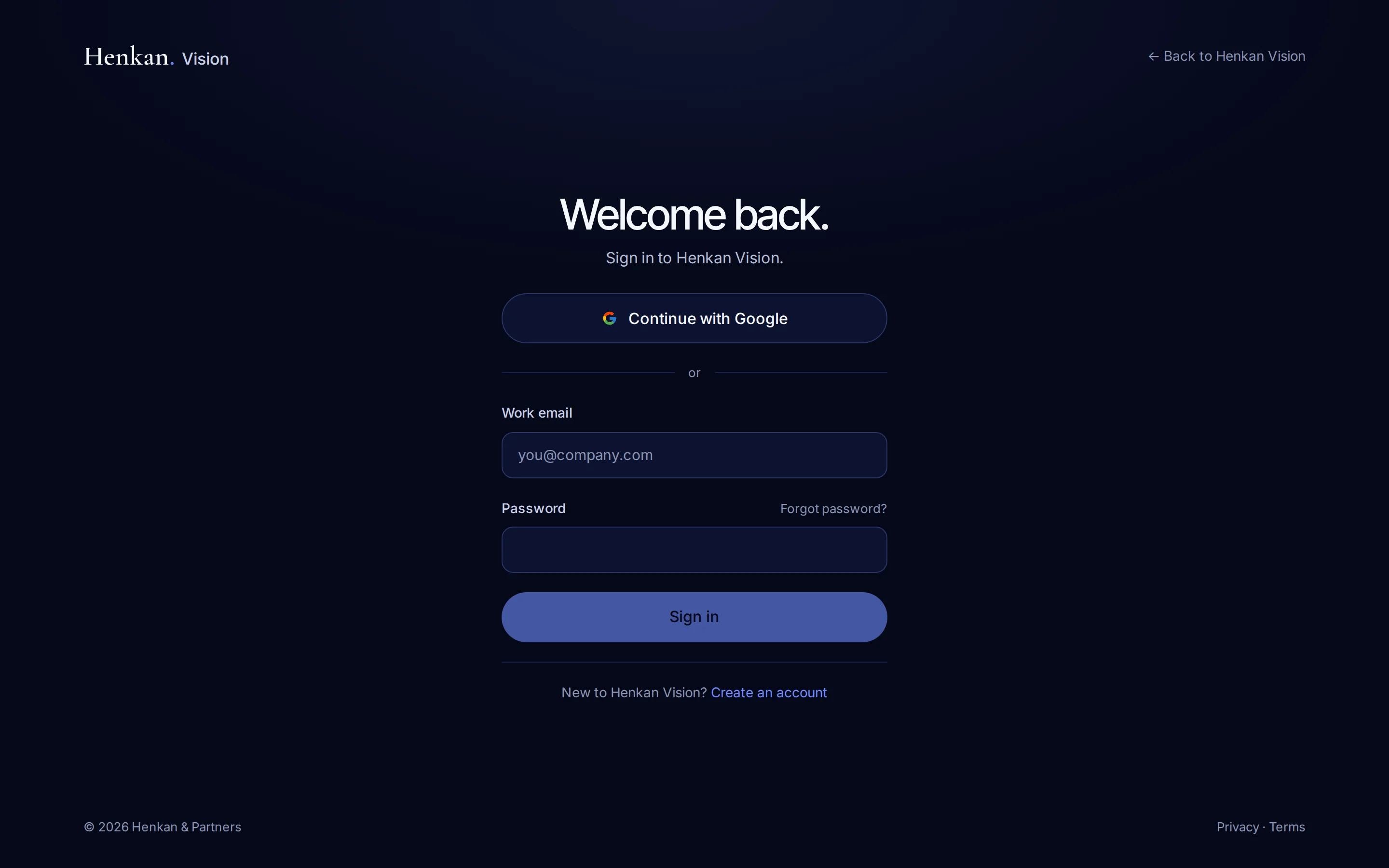
- Open Vision Go to vision.henkanpartners.ai and select Sign in.
- Choose a method Select Continue with Google, or enter your Work email and Password and select Sign in.
- Forgot your password? Select Forgot password?, enter your email and select Send reset link. The link in the email lets you choose a new password of at least 8 characters.
To create an account, select Create an account on the sign-in screen. You need your full name, your work email and a password of at least 8 characters. Confirm your email from the message Vision sends, then sign in.
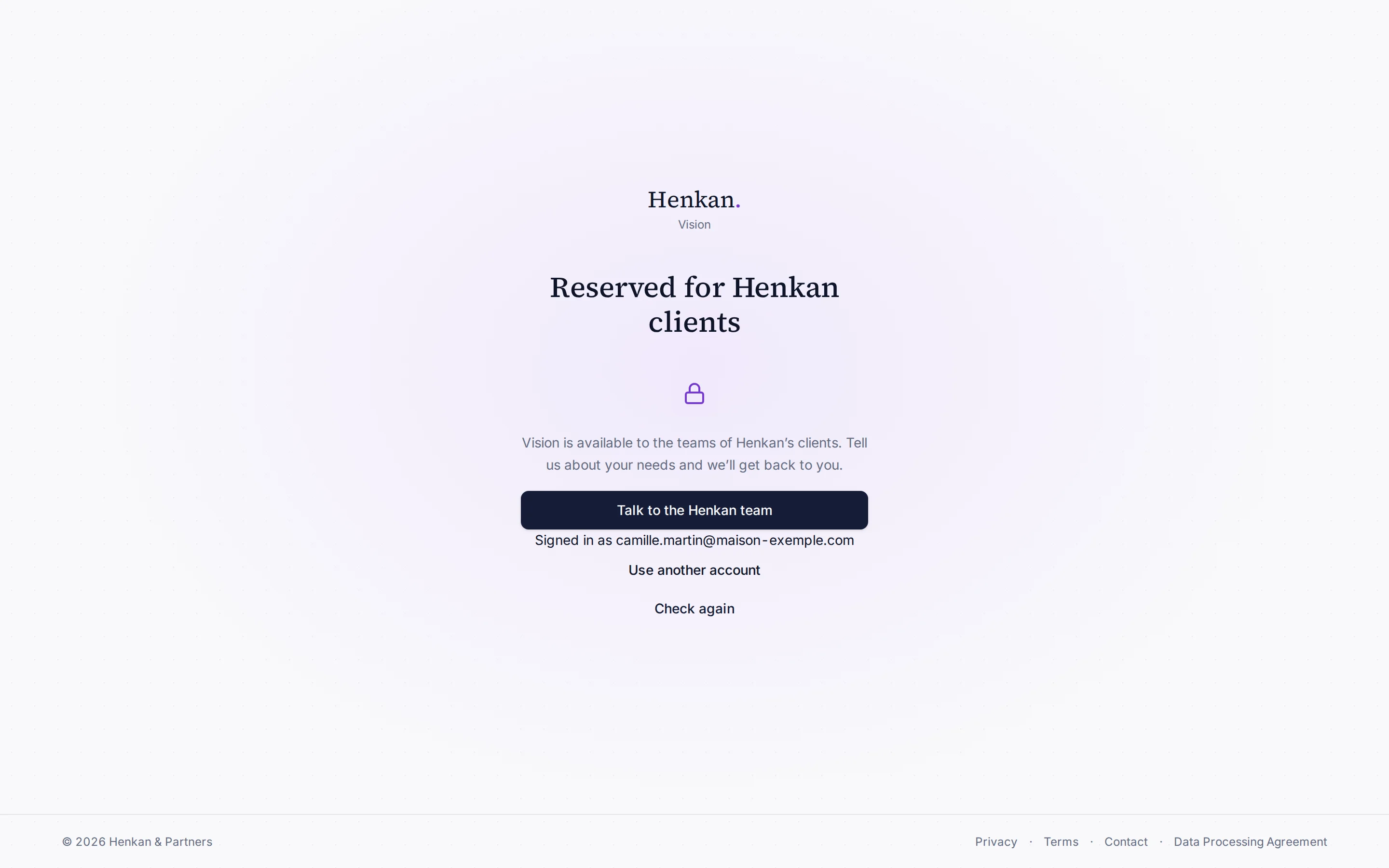
If you see "Reserved for Henkan clients"#
When your account is not linked to a Henkan client yet, Vision shows Reserved for Henkan clients instead of the app.
Create your organisation#
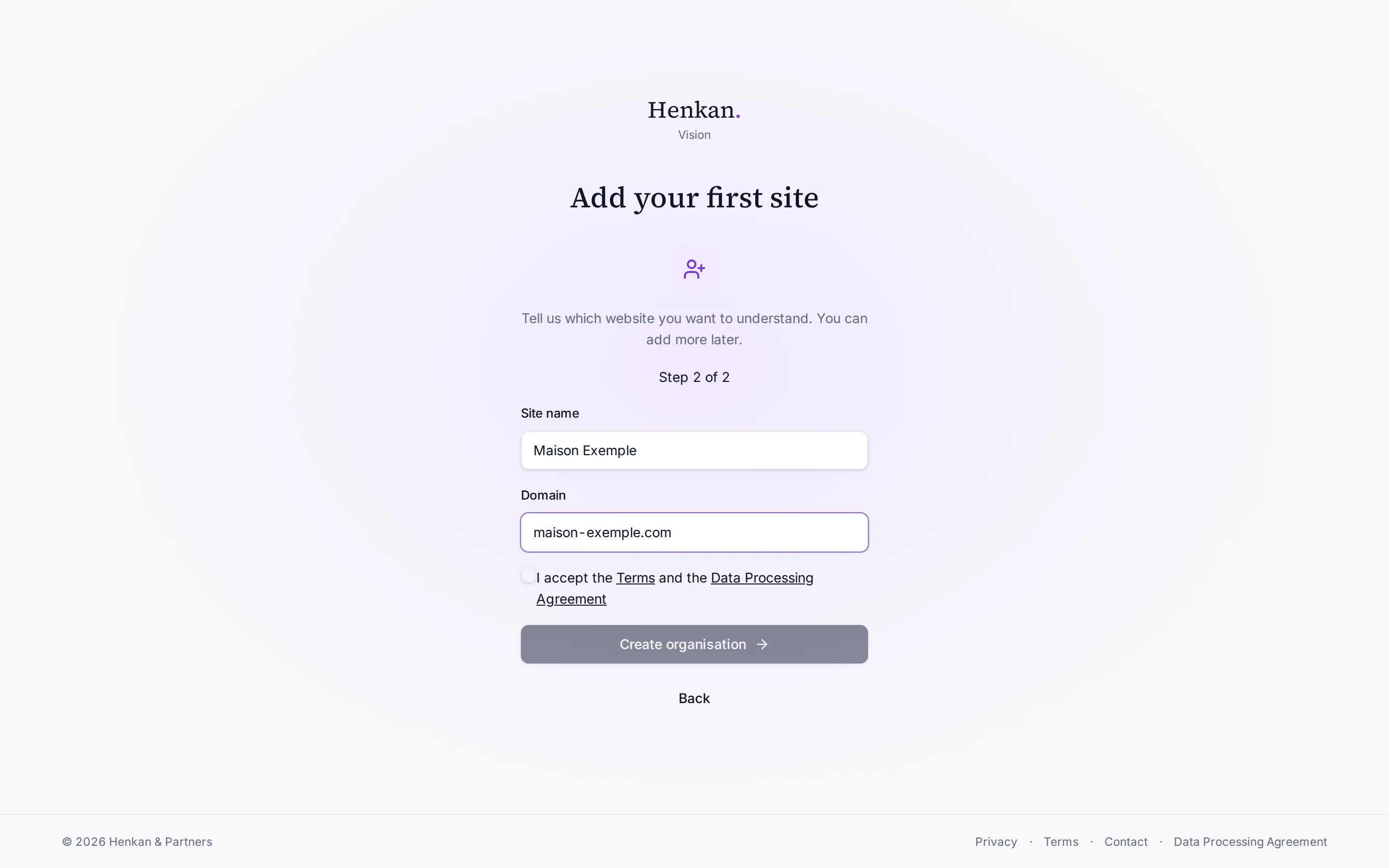
The first time you sign in without an invitation, Vision asks you to set up your organisation in two steps.
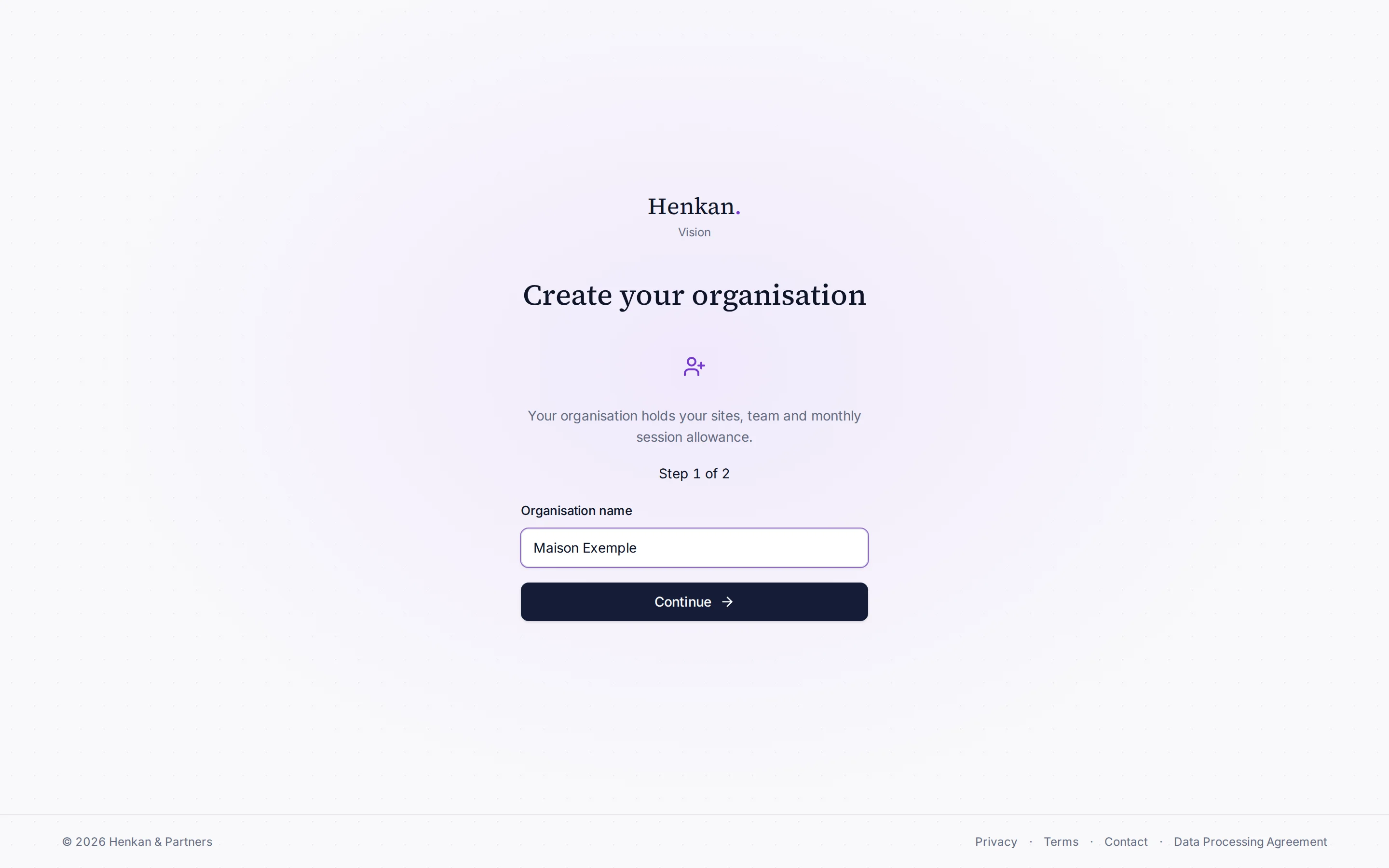
- Name the organisation Enter the Organisation name and select Continue.
- Add your first site Enter a Site name and Domain, tick the box to accept the Terms and the Data Processing Agreement, and select Create organisation.
- Install the script Vision shows your recording script and waits for your site to report in. Install it now or select I’ll do this later. See Install the script.
The person who creates the organisation becomes its Owner.
Sign out#
Open the account menu with your name at the bottom of the sidebar and select Sign out.