Filter and compare sessions by customer type, loyalty tier, cart value or any other value your site already pushes to its dataLayer for Google Tag Manager. List the keys you care about once, and Vision records their values with each session.
Vision records values only for the keys you list. To help you choose, it suggests the key names your pages send, without their values.
Add keys#
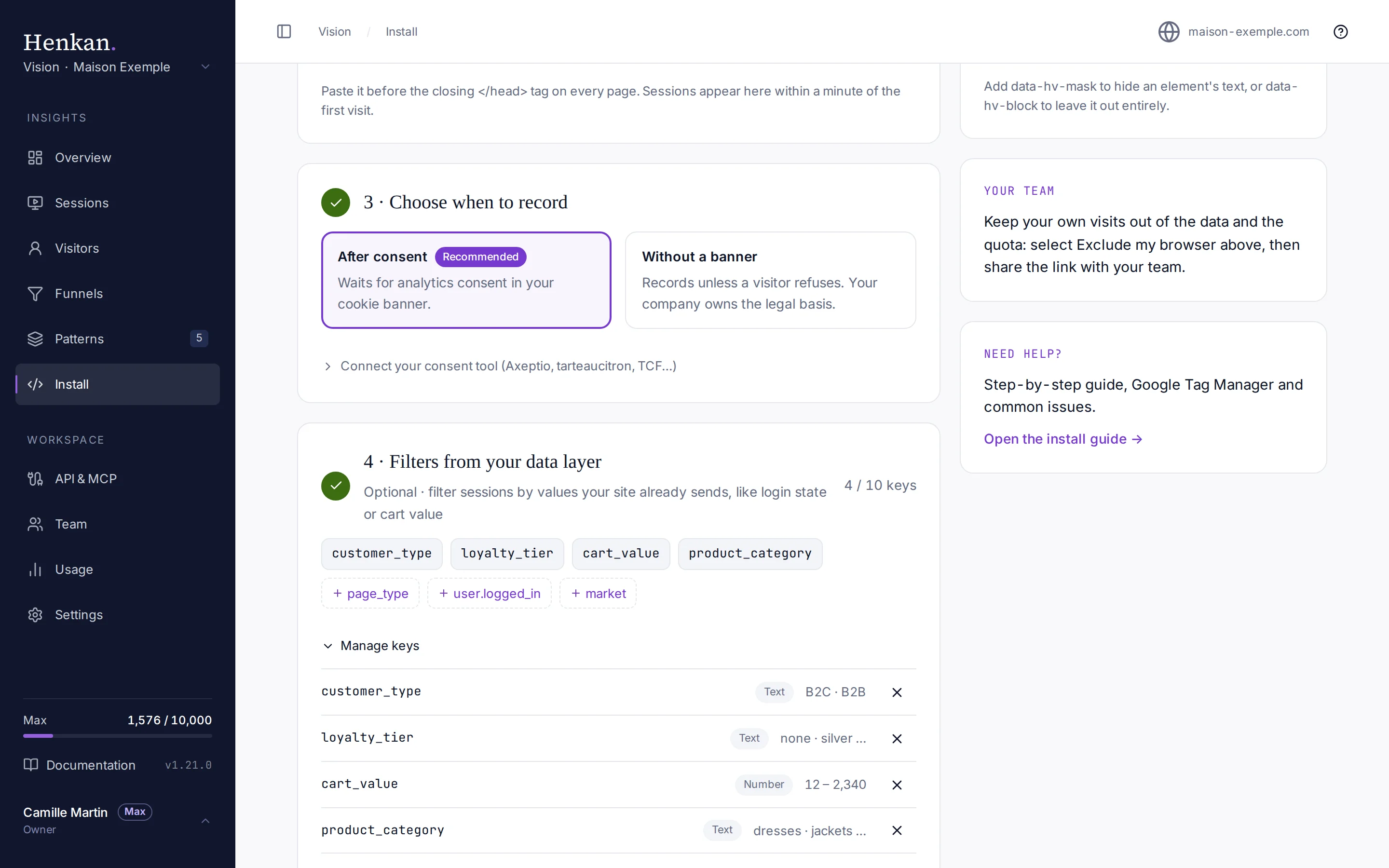
- Open Install Go to Install, step 3, Filters from your data layer. Suggested keys show with a dashed border: select one to add it, or open Manage keys for the full list.
- Pick a suggestion In Manage keys, under Suggested from your data layer, select Add next to a key. Vision guesses its type: Number for amounts and counts, Text for everything else.
- Add by name Open Add a key by name, type the key as it appears in your data layer (for a nested value, use dots:
user.tierorecommerce.value), choose Text or Number, then Add key.
Changes are saved at once, and only new sessions record the values: sessions recorded before are not changed. To stop recording a key, select × next to it.
Only organisation owners can change the keys. A site can list up to 10 keys.
Suggested keys#
You do not need to know your data layer by heart. Each recorded page reports the names of the keys it pushes to window.dataLayer, with no values.
Suggested from your data layer lists the most frequent ones over the last 7 days, with the share of pages that send them. Suggestions appear after a few recorded visits. Some keys are left out:
- Plumbing. Tag Manager and consent keys (
gtm.*,event, consent keys). - Sensitive-looking values. Keys whose values look like emails, identifiers or long text.
- Constant values. Keys with the same value on every page (a site name, a brand, an environment), since filtering on them would match every session. The script sends a short fingerprint of each value, which tells whether it changes without revealing it.
Filter sessions by value#
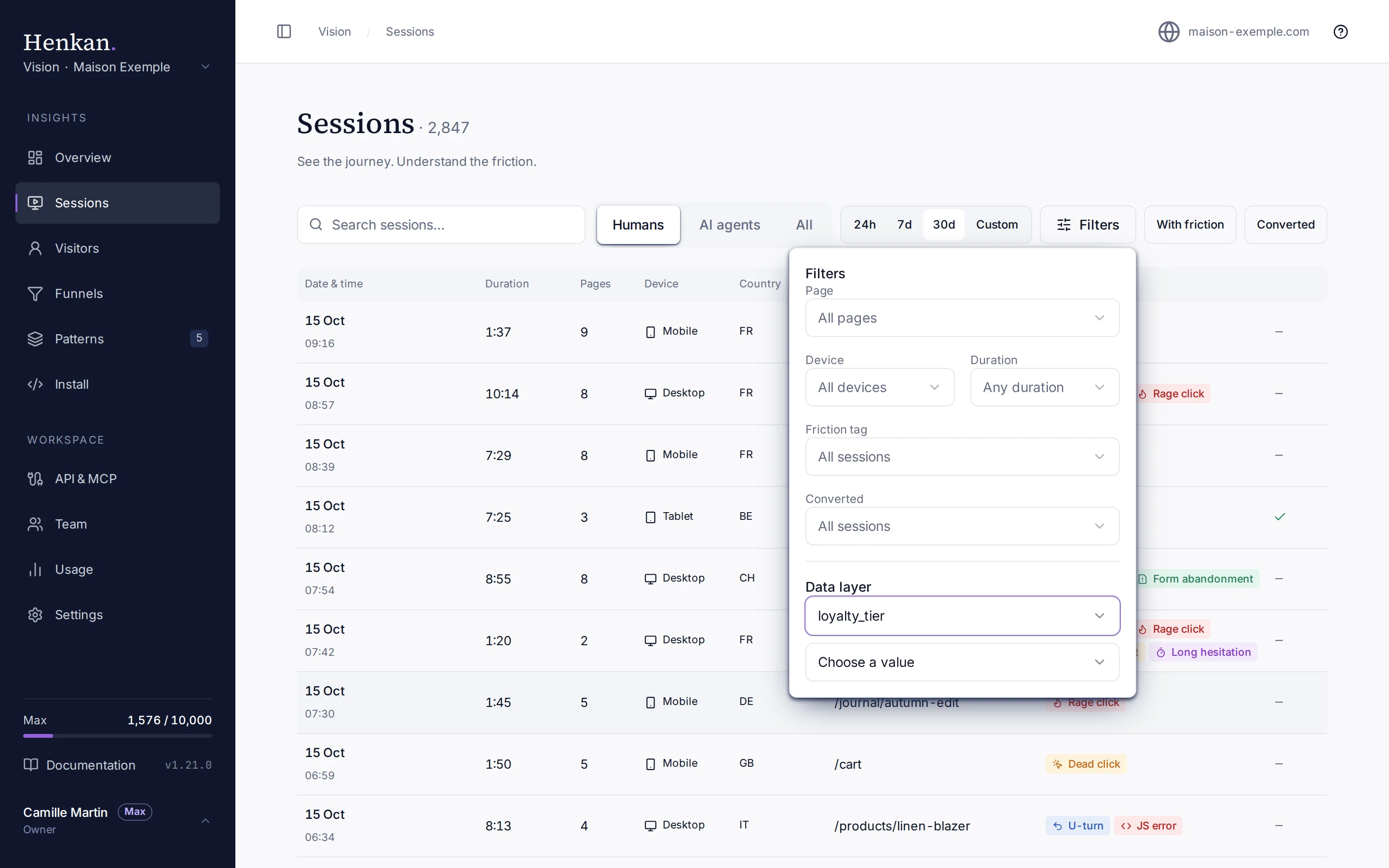
- Open the filters On Sessions, select Filters and go to Data layer.
- Pick a key Choose one of your keys.
- Pick a value For a text key, choose a value. For a number key, choose More than or Less than and type an amount.
Each condition appears as a chip under the toolbar, for example loyalty_tier: gold or cart_value > 150. Combine up to 5 data layer conditions with the other filters, and share the view by copying the page address.
A number key uses the highest value the session reached. A visitor whose cart went from €40 to €182 matches cart_value more than 150.
Compare values#
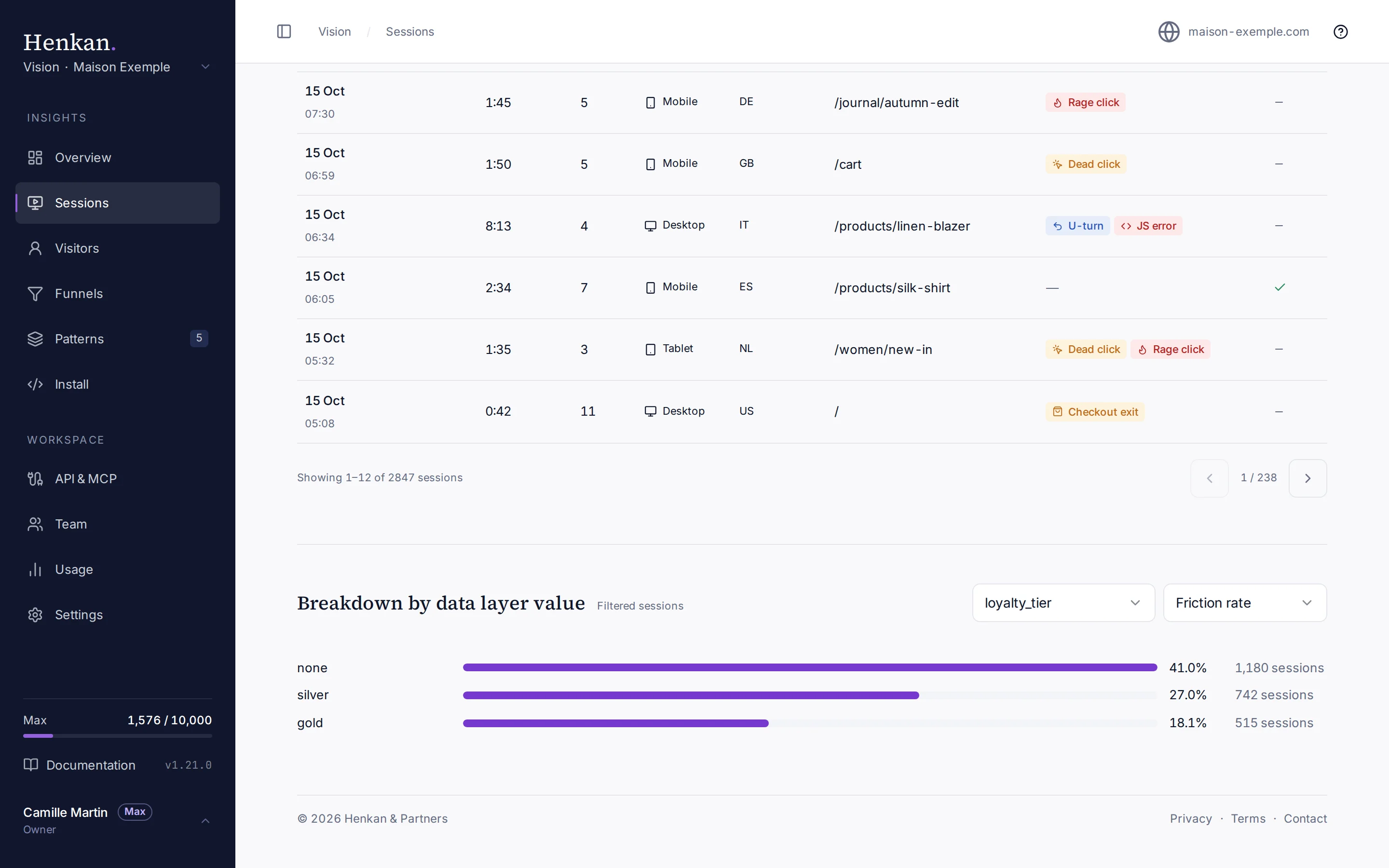
Under the session list, Breakdown by data layer value splits the sessions of the current view by one key and shows, for each value, its Friction rate or Conversion rate and its number of sessions. Select a text value to add it as a filter.
For a number key, sessions are grouped in up to five brackets of similar size, such as < 40, 40 – 85 or ≥ 300, based on each session's highest value. A bracket includes its lower bound and excludes its upper bound.
Select a bracket to keep only its sessions. When every session in a bracket has the same value, the line shows that value, such as 136, instead of the bracket.
On a session page, the Data layer line shows the values that visit pushed. Select a value to see the other sessions that share it.
Your AI agents can do the same through the MCP server and the REST API: filter sessions with dl, list the keys with list_data_layer_keys and compare values with get_data_layer_breakdown.
What Vision keeps#
- Only your keys. The script reads the keys you listed and nothing else in the data layer.
- No personal values. Values that look like an email address, a phone number or an identifier (long numbers, UUIDs, long codes) are dropped by the script and again by Vision's servers.
- Short, limited values. A text value is kept only up to 100 characters. Each text key keeps at most 50 different values per site; once a key reaches that limit, new values are dropped. This keeps order numbers and customer IDs out by design.
- Consent first. Like the rest of the recording, nothing is read before the visitor consents. See Recording consent.
- Same retention. Values are deleted with their session.
Plans#
Data layer filters are included on the POC and Max plans. On other plans you can still remove listed keys, but not add new ones, and new values are not collected. See Plans.